HOW TO USE
How to use
How to take a style you found and hand it to AI, together with its palette, visual traits and English prompt.
STEP 01
Find
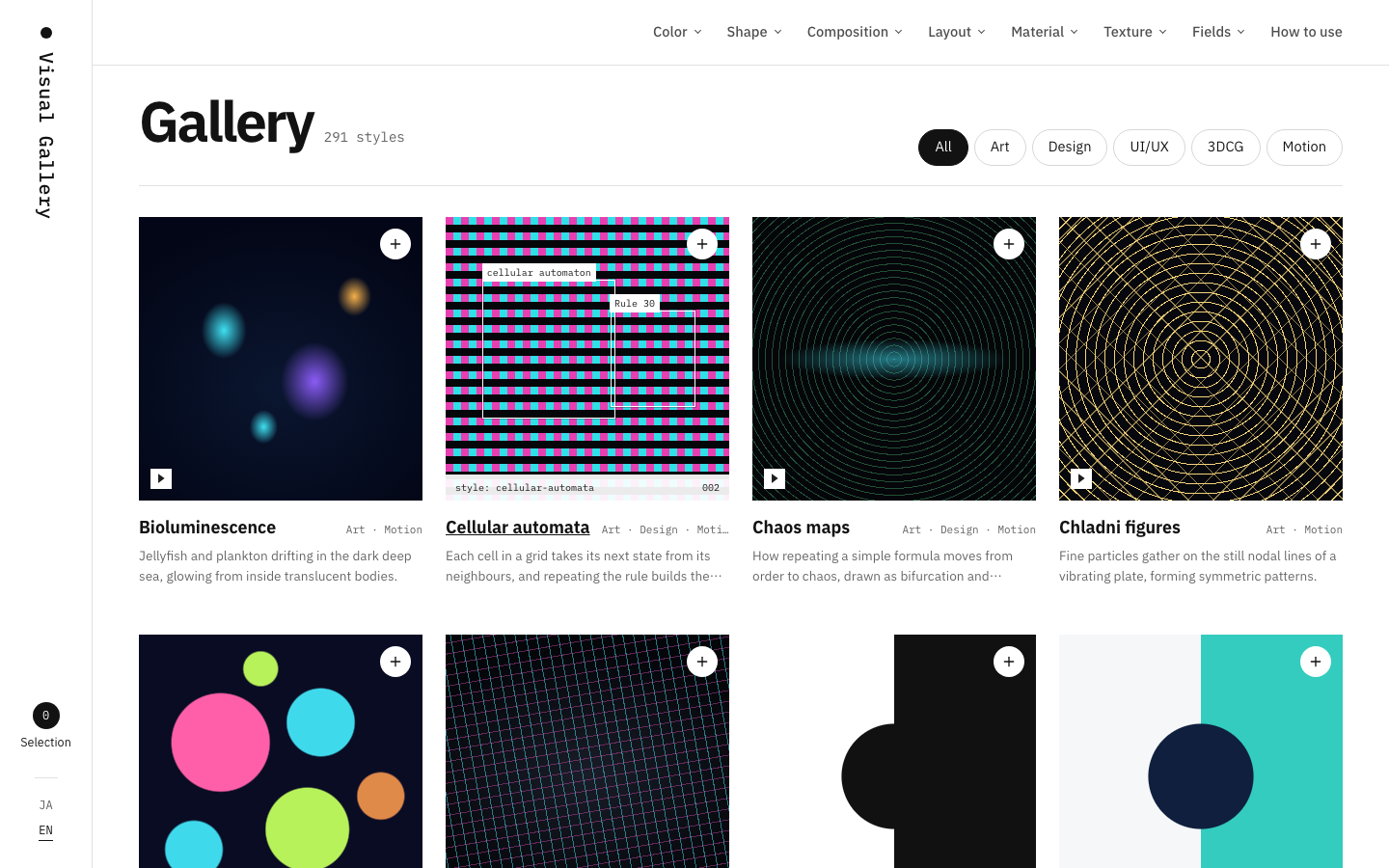
Browse the visual elements in the top menu (color, shape and more) or the gallery on Home. Filter by category.
- Open a visual element from the top menu
- Pick a subcategory
- Narrow the gallery with the filters
STEP 02
Open
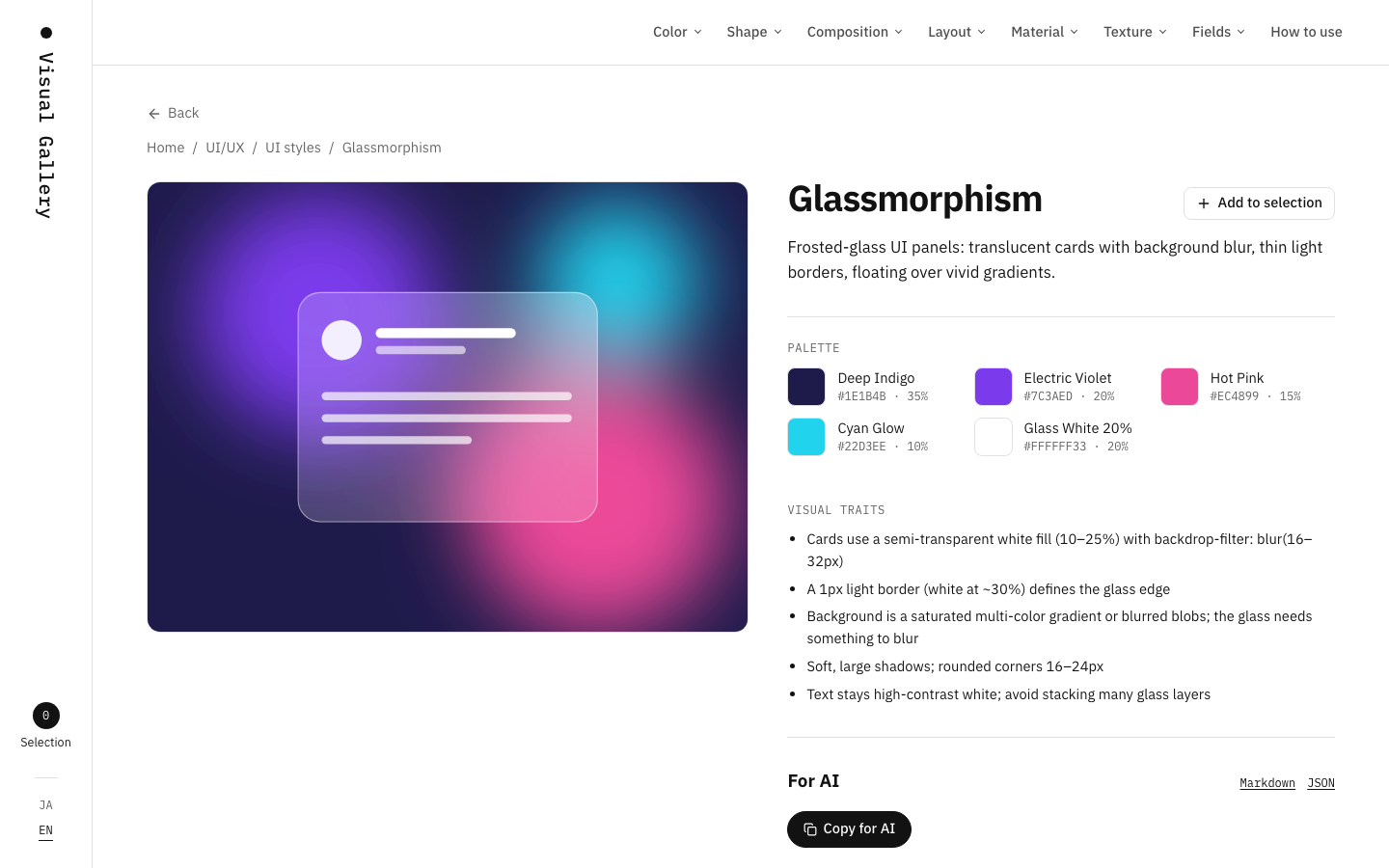
Open a thumbnail to see its detail page, with the palette, visual traits and English prompt in one place.
- Check the look in the sample
- Check the colors and their shares
- Read the visual traits
STEP 03
Select
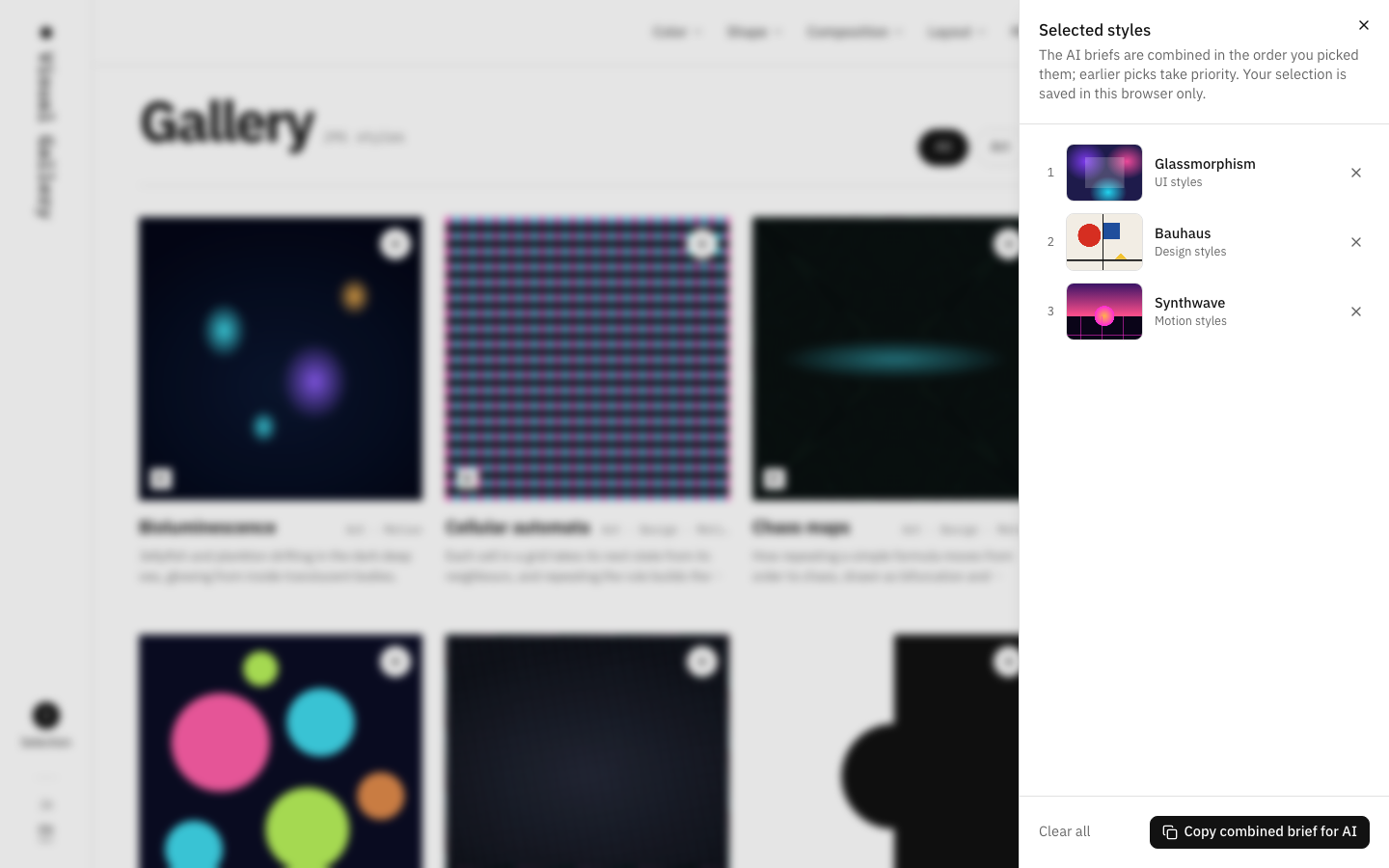
Use the + at the top right of a thumbnail to add it to your selection, and hand several styles to AI at once.
- Press + to select
- The count appears under “Selection” on the left
- Open the selection to review or remove
STEP 04
Copy for AI
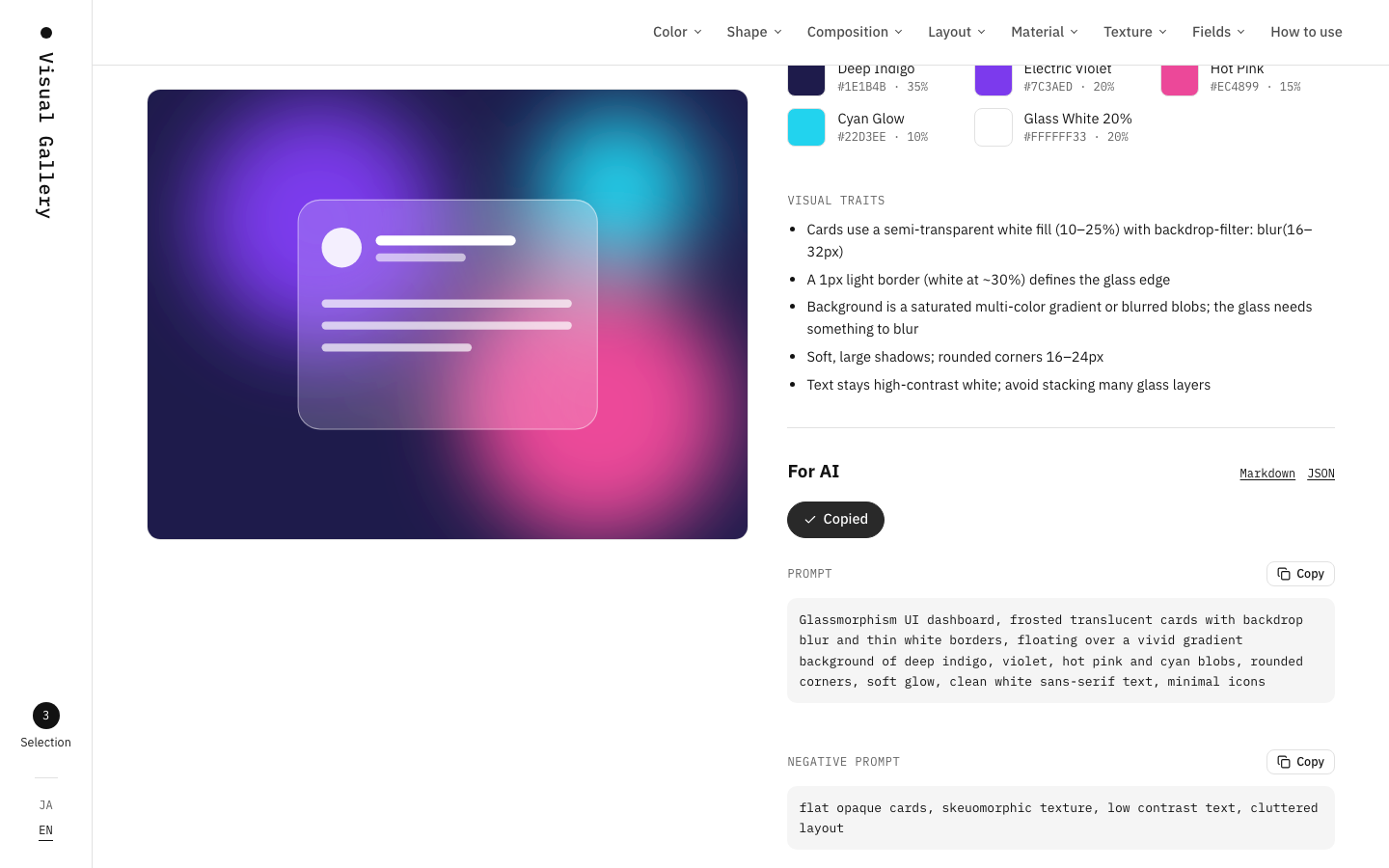
“Copy for AI” copies a brief that combines the prompt with the palette and traits.
- Press the button on a detail page or in the selection sheet
- Look for the “Copied” confirmation
STEP 05
Hand it to AI
Choose by whether you are using a chat or an agent, and whether you have already picked a style.
- Chat · style picked
Paste the copied text
Paste the text from “Copy for AI” into the chat and add what you want to make.
EXAMPLE(copied text) Using this style, suggest a design for a café menu - Agent · style picked
Give it the style’s URL
Give the “Markdown” URL from the detail page. It holds the same text as “Copy for AI”.
EXAMPLERead https://visual-gallery.asami.tokyo/api/v1/styles/glassmorphism/md and build the settings screen in this style - Agent · let AI choose
Give it the llms.txt index
An index of every style by category. The agent picks what fits its goal and reads it.
EXAMPLERead https://visual-gallery.asami.tokyo/llms.txt, pick a palette and texture style that fit this landing page, explain why, and apply them